Setting up Our VPN with PPTP access under Windows 7 is again simple. The following instructions go step-by-step through the creation process of a PPTP connection.
Open Network Connections
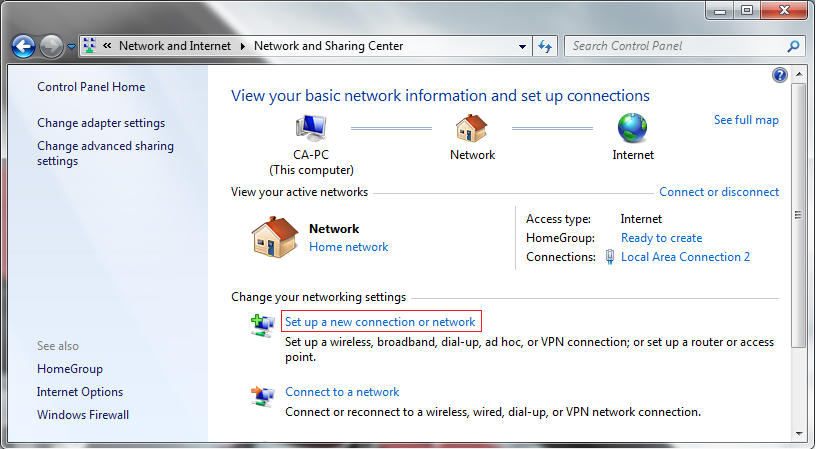
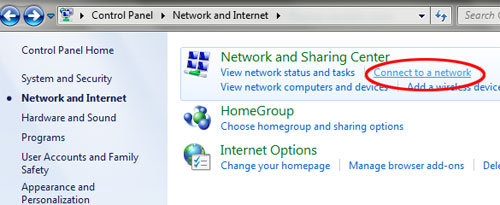
First, Open Network and Sharing Center from Control Panel. Then choose Set up a new connection or network.
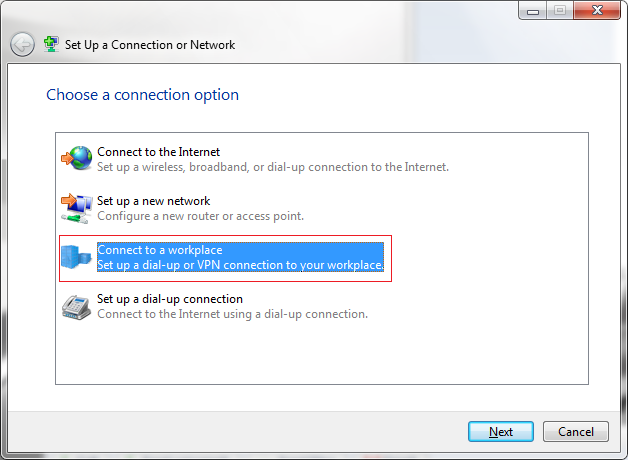
In the next window, choose Connect to a workplace.
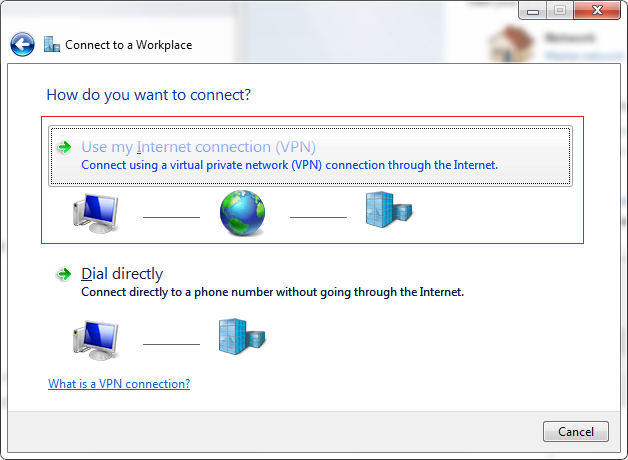
In the next window, choose Use my Internet Connection (VPN).
Type in the name or the IP address as 45.62.111.70.
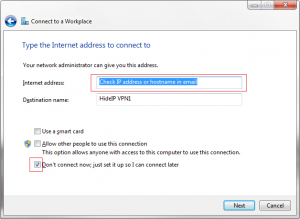
Then enter PPTP VPN as the name the connection in the destination name box (you can name it as you want). Then click Next.
In the next window, enter your user name and password for the VPN access. And click Create. You will need to use the Details provided in your Gig Order.
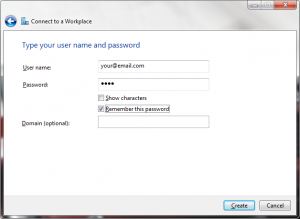
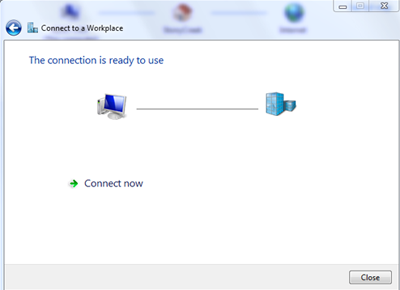
You’re all set if you see the next window as below.
You should see this screen next. Click the “Close” button to return to the “Network and Internet” screen.
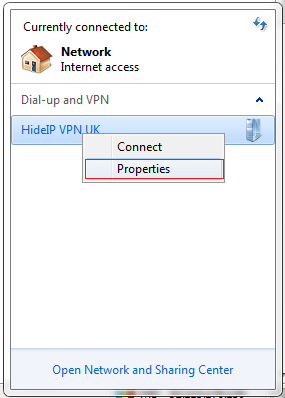
In the Connect to a network screen, you should see the PPTP VPN connection that you have just set up.
Right–click on the PPTP VPN connection document, and choose Properties from the menu.
In the PPTP VPN Properties select tab “Security”:
1) click on the Type of VPN – “Point to Point Tunneling Protocol (PPTP)”
2) click on the Data encryption – “Optional encryption (connect even if no encryption)
3) select Allow these protocols and tick as shown in the following picture
2) click on the Data encryption – “Optional encryption (connect even if no encryption)
3) select Allow these protocols and tick as shown in the following picture
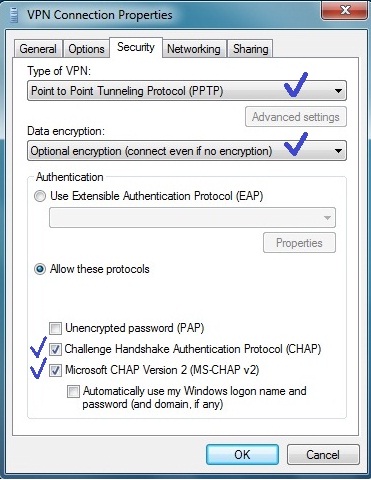
Next select tab “Networking”: put the ticks as shown in the following picture and click OK.
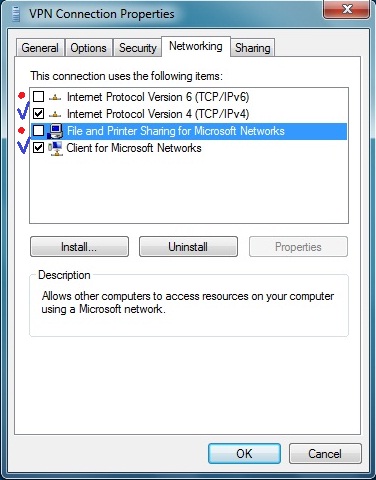
The connection is now ready to use. In order to connect/disconnect to HideIPVPN.com right click on the connection icon (viewable at Change adapter settings) and select connect/disconnect.
Disconnect From PPTP VPN
To disconnect from a VPN connection, right-click the icon for the connection, and then click “Disconnect”.
Important! You may not use this VPN for Commercial or Business purposes else if detected the VPN will be Suspended without any Refunds
If you need Commercial VPN please contact us through Fiverr.
BUY VPN NOW IF YOU DON'T HAVE ONE ALREADY , CLICK HERE.
BUY VPN NOW IF YOU DON'T HAVE ONE ALREADY , CLICK HERE.

No comments:
Post a Comment